Day 11: Switching EchoKit’s LLM to Groq — And Experiencing Real Speed | The First 30 Days with EchoKit

· 3 min read

Over the past few days, we’ve been exploring how flexible EchoKit really is — from changing the welcome voice and boot screen to swapping between different ASR providers like Groq Whisper, OpenAI Whisper, and local models.

This week, we shifted our focus to the LLM part of the pipeline. After trying OpenAI and OpenRouter, today we’re moving on to something exciting — Groq, known for its incredibly fast inference.

Why Groq? Speed. Real, noticeable speed.

Groq runs Llama and other open source models on its LPU™ hardware, which is built specifically for fast inference. When you pair Groq with EchoKit:

  • Responses feel snappier,
  • Interactions become smoother

If you want your EchoKit to feel ultra responsive, Groq is one of the best providers to try.

How to Use Groq as Your EchoKit LLM Provider

Just like yesterday’s setup, all changes happen in your config.toml of your EchoKit server.

Step 1 — Update your LLM section

Locate the llm section and replace the existing LLM provider with something like:

[llm]
chat_url = "https://api.groq.com/openai/v1/chat/completions"
api_key = "YOUR_GROQ_API_KEY"
model = "openai/gpt-oss-120b"
history = 5

Replace the LLM endpoint URL, API key and model name. The production models from Groq are llama-3.1-8b-instant, llama-3.3-70b-versatile, meta-llama/llama-guard-4-12b, openai/gpt-oss-120b, and openai/gpt-oss-20b.

Step 2 — Restart your EchoKit server

After editing the config.toml, you will need to restart your EchoKit server.

Docker users:

docker run --rm \
-p 8080:8080 \
-v $(pwd)/config.toml:/app/config.toml \
secondstate/echokit:latest-server-vad &

Or restart the Rust binary if you’re running it locally.

# Enable debug logging
export RUST_LOG=debug

# Run the EchoKit server in the background
nohup target/release/echokit_server &

Then return to the setup page, pair the device if needed. You should immediately feel the speed difference — especially on follow-up questions.


A Few Tips for Groq Users

  • Groq works best with Llama models
  • You can experiment with smaller or larger models depending on your device’s use case
  • For learning or exploring, the default Groq Llama models are a great starting point

Groq is known for ultra-fast inference, and pairing it with EchoKit makes conversations feel almost instant.

If you’re building a responsive voice AI agent, Groq is definitely worth trying.


If you want to share your experience or see what others are building with EchoKit + Groq:

  • Join the EchoKit Discord
  • Or share your latency tests, setups, and experiments — we love seeing them

Want to get your own EchoKit device?

Day 10: Using OpenRouter as Your EchoKit LLM Provider | The First 30 Days with EchoKit

· 3 min read

Over the past two weeks, we’ve explored many moving parts inside the ASR → LLM → TTS pipeline. We’ve changed the welcome voice, updated the boot screen, switched between multiple ASR providers, and learned how to run the EchoKit server both via Docker and from source.

This week, we shifted our focus to the LLM, the part of the pipeline that interprets what you say and decides how EchoKit should respond.

Yesterday, we used OpenAI as the LLM provider. Today, we’re going to try something more flexible — OpenRouter.

What Is OpenRouter?

OpenRouter is a unified API gateway that gives you access to many different LLMs without changing your code structure. It’s fully OpenAI-API compatible in the context of text generation models, which means EchoKit can work with it right away.

Some reasons I like OpenRouter:

  • You can choose from a wide selection of open source LLMs: Qwen, Llama, DeepSeek, Mistral, etc.
  • Switching models doesn’t require code changes — just update the model name.
  • Often more cost-effective and more customizable.
  • Great for exploring different personalities and response styles for EchoKit.

How to Use OpenRouter as Your LLM Provider

1. Get Your OpenRouter API Key

Go to your OpenRouter dashboard and generate an API key. Keep it private — it works just like an OpenAI API key.

2. Update config.toml

Open your EchoKit server configuration file and locate LLM:

[llm]
provider = "openrouter"
chat_url = "https://openrouter.ai/api/v1/chat/completions"
api_key = "YOUR_API_KEY_HERE"
model = "qwen/qwen3-14b"
history = 5

You can replace the model with any supported model on OpenRouter.

3. Restart Your EchoKit Server

If you’re running from the Rust source code, after saving the updated config.toml:

# Enable debug logging
export RUST_LOG=debug

# Run the EchoKit server in the background
nohup target/release/echokit_server &

Or using Docker:

docker run --rm \
-p 8080:8080 \
-v $(pwd)/config.toml:/app/config.toml \
secondstate/echokit:latest-server-vad &

Then return to the setup page, pair the device if needed, and EchoKit will now respond using OpenRouter. That's it.

Connecting EchoKit to OpenRouter feels like I unlocked a new layer of creativity. OpenAI gives you a clean and reliable default, but OpenRouter opens the door to experimenting with different model behaviors, tones, and personalities — all without changing your application logic.

If you enjoy tweaking, tuning, and exploring how different models shape your EchoKit’s “brain”, OpenRouter is one of the best tools for that.


If you want to share your experience or see what others are building with EchoKit + OpenRouter:

  • Join the EchoKit Discord
  • Or share your latency tests, setups, and experiments — we love seeing them

Want to get your own EchoKit device?

EchoKit Update in Nov: Firmware & Server Improvements

· 3 min read

We’re excited to share the latest updates of EchoKit in Nov, our open-source voice AI kit for makers, developers, students. These updates introduce new features in both the firmware and server, making it easier than ever to set up your device and customize its behavior.

Firmware Update

The latest firmware brings several user-friendly improvements:

  1. One-Click Wi-Fi & Server Setup All configuration options—including Wi-Fi credentials and server URL—are now bundled into a single setup interface when connecting the EchoKit Server to your device. Click one button - Save Configurations, and your device will automatically save the settings, restart, and apply the new configuration. See details here.

  2. Version Display You can now easily check your EchoKit firmware version on the device, helping you keep track of updates.

  3. EchoKit Box Volume Adjustment Adjust the volume directly on your EchoKit Box for a better audio experience without extra steps.

    • K2 to lower the volume
    • K1 to increase the volume

Server Update

The EchoKit server has also received key improvements:

  1. Dynamic Prompt Loading via URL

    Prompts define how the AI responds, and with the growing ecosystem of open-source LLM prompts, there’s a wealth of ready-to-use content. For example, websites like LLMs.txt host thousands of prompts for various AI models and use cases. With dynamic prompt loading, you can point EchoKit to these URLs and experiment with different personalities, knowledge bases, or conversation styles in seconds.

    You can now load prompts dynamically from a URL, allowing you to:

    • Update the AI’s behavior remotely
    • Test new conversation flows without restarting the server
    • Quickly iterate on experiments and demos

    Learn more from the doc: https://echokit.dev/docs/server/dynamic-system

  2. Add a Wait Message for MCP Tools When calling MCP tools, a “please wait” message will now appear, providing clear feedback while operations are in progress.

How to Get These New Features

Firmware Update

  1. Download the latest firmware from EchoKit Firmware Page
  2. Flash the firmware to your device using the ESP32 Launchpad or CLI command line
  3. Your device will now support one-click setup, version display, and volume adjustment for EchoKit Box

Server Update

  1. Get the latest EchoKit server: https://github.com/second-state/echokit_server/releases
  2. Run the latest EchoKit server with docker or from Rust source code
  3. You’ll get dynamic prompt loading and wait messages for MCP tools

Once your device and server are updated, all new features will be immediately available.

These updates are part of our ongoing effort to make EchoKit more user-friendly, flexible, and powerful. Whether you’re a maker experimenting with AI at home or a developer building advanced voice interactions, these improvements make it easier to focus on what matters: creating amazing experiences.

Stay tuned for more updates, and happy tinkering with EchoKit!

Day 9: Use OpenAI as Your EchoKit LLM Provider | The First 30 Days with EchoKit

· 4 min read

(And today, you’ll see how easy it is to use OpenAI as your LLM provider.)

Hey everyone, and welcome back! We've covered a ton of ground over the past two weeks in "The First 30 Days with EchoKit." Seriously, look how much we've accomplished:

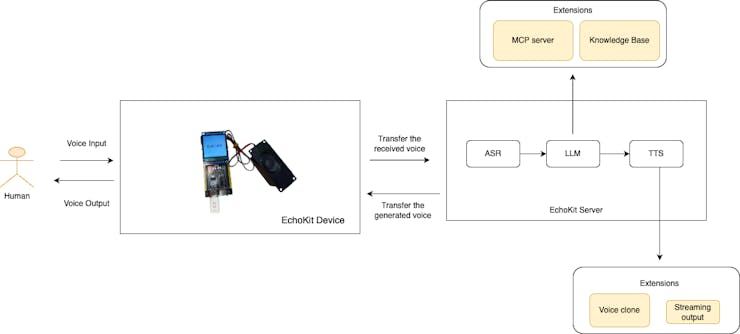
If you remember, everything inside EchoKit runs through that simple yet incredibly powerful pipeline: ASR → LLM → TTS so far.

Each piece plays a crucial part in the voice AI loop:

  • ASR (The Ears): Converts your spoken words into text.
  • LLM (The Brain): Interprets that text, thinks about it, and decides what the perfect response should be.
  • TTS (The Mouth): Turns the final text answer back into speech.

Last week, we were all about replacing Whisper and swapping out the "ears." For the next few days, we're putting the spotlight squarely on the middle piece: the LLM.

And today, we’re starting with the most common and powerful choice out there—OpenAI!

⭐ What Exactly Does the LLM Do in the EchoKit Server? (It's the Mastermind!)

The LLM is, quite literally, the mastermind of your entire setup. It's the engine that:

  • Instantly grasps what the user actually wants.
  • Processes all the conversational history (context).
  • Generates those helpful, natural, and human-like responses.
  • Controls how your EchoKit behaves during a conversation.
  • And, yes, it calls the necessary MCP servers to get things done!

EchoKit proudly supports any provider that uses an OpenAI-compatible LLM API.

Step 1 — Get Your Key Ready

Open up your trusted config.toml file and find the [llm] section. Replace it with this block:

[llm]
llm_chat_url = "https://api.openai.com/v1/chat/completions"
api_key = "YOUR_OPENAI_KEY" # Don't forget to replace this!
model = "gpt-5-mini-2025-08-07" # Choose your favorite model here (e.g., gpt-3.5-turbo)
history = 5

Here's the quick rundown on those settings, just so you know what you're tuning:

  • [llm]: We're configuring the Large Language Model section.
  • llm_chat_url: OpenAI’s chat completions endpoint.
  • api_key: Get your key from the OpenAI API platform.
  • model: Which OpenAI model should power your EchoKit's thoughts? Up to you!
  • history: How many previous turns of the conversation should your EchoKit remember for context?

Step 2 — Time for a Quick Reboot!

Whether you’re running your EchoKit server via Docker or from the Rust code, go ahead and restart it right now. That’s it! You're completely done with the server configuration. Told you it was easy!

Step 3 — Connect the New Brain to Your Device

The grand finale! Time to link up your physical EchoKit device to the server with its shiny new OpenAI brain:

  1. Head over to https://echokit.dev/setup/ and reconnect the server if you need to.
  2. Pro Tip: If you only changed your LLM configuration and nothing else (URL, WiFi), you can just hit the RST button on your EchoKit device. It will restart and sync the new settings instantly!
  3. If your server URL or WiFi setup changed, you'll need to reconfigure them through the setup page, just like you did on Day 1.

Next, press that K0 button and start speaking. Every clever thing your EchoKit says back to you is now being powered by OpenAI!


If you want to share your experience or see what others are building with EchoKit + OpenAI:

  • Join the EchoKit Discord
  • Or share your latency tests, setups, and experiments — we love seeing them

Want to get your own EchoKit device?

Day 8: Run Whisper Locally on Your Machine | The First 30 Days with EchoKit

· 3 min read

(And Today You’ll See How Easy It Is to Run ASR Service Locally)

Up to now, your EchoKit has worked with Whisper via Groq, and Whisper via OpenAI.

Today, we’re taking a major step forward—your EchoKit will run fully local ASR using Whisper + WasmEdge.

No cloud requests. No latency spikes. No API keys. Everything runs on your own machine, giving you full control over privacy, performance, and cost.

Whisper is an amazing ASR model. Let’s get your local Whisper server running and connect it to EchoKit.

You can also use other tool to run whisper locally as long as the API server is OpenAI-compatible.

Run the Whisper model locally

1. Install WasmEdge

Open your terminal and run:

curl -sSf https://raw.githubusercontent.com/WasmEdge/WasmEdge/master/utils/install_v2.sh | bash -s

This installs WasmEdge along with all base components.

2. Install the Whisper Plugin (wasi-nn-whisper)

My computer is a Mac with Apple Silicon, so I will download the whisper plugin using the following command lines

# Download the whisper plugin
curl -LO https://github.com/WasmEdge/WasmEdge/releases/download/0.14.1/WasmEdge-plugin-wasi_nn-whisper-0.14.1-darwin_arm64.tar.gz

# Extract into the WasmEdge plugin directory
tar -xzf WasmEdge-plugin-wasi_nn-whisper-0.14.1-darwin_arm64.tar.gz -C $HOME/.wasmedge/plugin

For other platforms, please refer to Quick Start with Whisper and LlamaEdge

3. Download the Portable Whisper API Server

This app is just a .wasm file — lightweight (Size: 3.7 MB) and cross-platform.

curl -LO https://github.com/LlamaEdge/whisper-api-server/releases/download/0.3.9/whisper-api-server.wasm

4. Download a Whisper Model

You can browse models here:

https://huggingface.co/ggerganov/whisper.cpp/tree/main

Today we’ll use the medium model:

curl -LO https://huggingface.co/ggerganov/whisper.cpp/resolve/main/ggml-medium.bin

5. Start the Whisper API Server

Run Whisper locally:

wasmedge --dir .:. whisper-api-server.wasm -m ggml-medium.bin

You’ll see:

Server started on http://localhost:8080

This server is OpenAI API compatible, so EchoKit can use it directly.

Connect EchoKit to Your Local Whisper Server

Update your config.toml and locate the asr section:

[asr]
provider = "http://localhost:8080/v1/audio/transcriptions"
api_key = "sk-xxxx"
lang = "en"
model = "whisper"

Yes, you only need to replace the endpoint.

Restart the EchoKit server, pair your device, connect the EchoKit server to the device, and speak.

If you want to share your experience or see what others are building with EchoKit + local whisper:

  • Join the EchoKit Discord
  • Or share your latency tests, setups, and experiments — we love seeing them

Want to get your own EchoKit device?

Day 7: Use OpenAI Whisper as Your ASR Provider | The First 30 Days with EchoKit

· 3 min read

(And Today You’ll See How Easy It Is to Switch ASR Providers in EchoKit)

Over the past few days, we’ve powered up EchoKit, run your own EchoKit server locally, customized the boot screen, crafted your own welcome voice and connected it to Groq Whisper for fast speech recognition.

Today, we’re switching things up — literally.

We’ll configure EchoKit to use Whisper from OpenAI as the ASR provider.

Not because one is “better,” but because EchoKit is designed to be modular, letting you plug in different ASR backends depending on your workflow, API preferences, or costs.

What's the difference between OpenAI Whisper and Groq Whisper?

Groq Whisper and OpenAI Whisper are based on the same open-source Whisper model.

What differs is the hosting:

  • Groq runs Whisper on its custom LPU hardware (very fast inference).
  • OpenAI runs Whisper on their internal infrastructure with its own rate limits and pricing.
  • Both will return slightly different results based on their pipeline design and updates.

This isn’t a “which is better” comparison. It’s about understanding your options, and EchoKit makes switching between them smooth and flexible.

And many developers already use OpenAI for other AI tasks, so trying its Whisper API can be convenient. EchoKit adopts multi-provider ASR architecture.

Today’s goal is simple: 👉 See how easy it is to switch providers while keeping the same Whisper model.

How to Use OpenAI Whisper

Now let’s switch EchoKit’s ASR provider.

Open your config.toml and locate the [asr] section. Replace it with:

[asr]
provider = "https://api.openai.com/v1/audio/transcriptions"
api_key = "sk-xxxx"
lang = "en"
model = "whisper-1"

A quick breakdown:

  • [asr] — we’re configuring the ASR section
  • url — Openai’s Whisper endpoint for transcriptions
  • lang — your preferred language (en, zh, ja etc.)
  • api_key — the key obtained from OpenAI API plaform
  • model — OpenAI's supported ASR models (whisper-1 or gpt-4o-transcribe, gpt-4o-mini-transcribe,)

Save → restart your EchoKit server with Docker or from the source code → done.

EchoKit is now using OpenAI Whisper for real-time speech-to-text. The rest of your pipeline (LLM → TTS) stays the same.

You can follow the same process to reconnect the server and your EchoKit device.

EchoKit’s ASR system was built to support all OpenAI-compatible provider — so feel free to try different providers, compare results, and find what works best for your setup.

If you want to share your experience or see what others are building with EchoKit + OpenAI:

  • Join the EchoKit Discord
  • Or share your latency tests, setups, and experiments — we love seeing them

Want to get your own EchoKit device?

Day 6: Integrate Groq as the ASR Engine for Your EchoKit | The First 30 Days with EchoKit

· 4 min read

(Today, your EchoKit learns to understand you—faster and sharper.)

By now, you’ve powered up EchoKit, run your own EchoKit server locally, customized the boot screen, crafted your own welcome voice, and started shaping your very own voice AI companion.

Today, we’re upgrading something fundamental: how your EchoKit listens to you. In any voice AI agent, ASR is the very first step — it’s how your device hears you before it can think or speak back.

One of the best parts of EchoKit being open source voice AI agent is that you can plug in whatever ASR–LLM–TTS pipeline works best for your needs. And for many makers, developers, and tinkerers, Groq has become the go-to for ultra-fast voice recognition.

So on Day 6, you’ll learn how to integrate Groq with EchoKit and feel that speed boost every time you press the K0 button and start talking.

Let’s dive in.

Why Groq? (And Why Today Feels Like a Power-Up)

If you’ve never tried Groq before, prepare to be surprised. Groq is known for delivering extremely low-latency inference. When we tested it, the difference was obvious — conversations felt snappier, more natural, and closer to real-time.

Adding it to your EchoKit means:

  • Faster voice-to-text recognition
  • More responsive conversations
  • A smoother ASR-LLM-TTS pipeline
  • And honestly… it just feels good seeing your device level up

Today is about giving your device better ears.

Step 1 — Get Your Groq API Key

Head to the Groq console (https://console.groq.com/keys) and sign up if you’re new.

Click + Create API Key, give it a name, and copy it somewhere safe — it won’t be shown again.

This key is what lets your EchoKit talk to Groq securely.

Step 2 — Apply the Groq ASR Settings to Your EchoKit Server

Open your config.toml file inside your EchoKit Server (Docker or Rust build).

We’re going to tell EchoKit: “Hey, use Groq Whisper as my ASR engine.”

Paste the following:

[asr]
url = "https://api.groq.com/openai/v1/audio/transcriptions"
lang = "en"
api_key = "YOUR_GROQ_API_KEY_HERE"
model = "whisper-large-v3-turbo"

A quick breakdown:

  • [asr] — we’re configuring the ASR section
  • url — Groq’s Whisper endpoint
  • lang — your preferred language (en, zh, ja etc.)
  • api_key — the key you generated
  • model — Groq’s supported Whisper models (whisper-large-v3 or whisper-large-v3-turbo)

EchoKit follows OpenAI-style specs, so you’re free to replace Groq with other providers later if you want, which we will learn in the upcoming days. This flexibility is part of what makes EchoKit… EchoKit.

Now restart your EchoKit server using Docker or Rust code. You’re done on the server side!

Step 3 — Connect the Updated Server to Your EchoKit Device

Head to https://echokit.dev/setup/ and rebind the server if needed.

If nothing changed except your ASR configuration, you can simply press the RST button on your EchoKit to restart it and sync the new settings.

If your server URL or WiFi setup changed, you can reconfigure them through the setup page — just like you did on Day 1.

Now comes the fun part.

Press the K0 button and start speaking.

You’ll feel the difference immediately — the Groq Whisper model picks up your words almost as soon as you say them.

Your EchoKit just got better ears. Remember to check the logs to see how long Groq’s Whisper took to transcribe the audio.

Today’s upgrade brings more speed and responsiveness, setting the stage for a deeper dive into the EchoKit server in the upcoming days.

If you want to share your experience or see what others are building with EchoKit + Groq:

  • Join the EchoKit Discord
  • Or share your latency tests, setups, and experiments — we love seeing them

Want to get your own EchoKit device?

Day 5: Customize the Welcome Voice for Your EchoKit | The First 30 Days with EchoKit

· 3 min read

(And Today, Your EchoKit Greets You in Your Own Voice!)

By now, you’ve powered up EchoKit, run the server (via Docker or from source), and even customized the boot screen.

Today, we’re taking it one step further: giving your EchoKit a personalized welcome voice.

It’s a simple tweak, but it instantly transforms your device into a Voice AI agent with its own character — a tiny AI companion that greets you the way you like.

Create Your Own Voice

Your welcome sound can be anything you want:

  • Your own recorded voice
  • A short greeting phrase
  • Even a favorite piece of music

Just make sure your audio file meets these requirements:

  • WAV format
  • 16 kHz sample rate

You can quickly convert audio to 16 kHz using the online tool or FFmpeg:

ffmpeg -i input.mp3 -ar 16000 output.wav

💡 Pro Tip: This is a great opportunity to give your EchoKit a special gift — a voice that makes it uniquely yours!

Set Up Your Custom Welcome Voice

To apply your custom sound, run your EchoKit Server (Docker or compiled binary).

If your device was previously set up, reset it first:

  • Press the RST button
  • Immediately press the K0 button until the QR code shows

Then, open your config.toml file and look for:

addr = "0.0.0.0:8080"
hello_wav = "hello.wav"

Replace hello.wav with your own file path, for example:

addr = "0.0.0.0:8080"
hello_wav = "my_welcome.wav"

Restart your EchoKit server using Docker or [from the Rust source code]((https://echokit.dev/docs/dev/echokit-30-days-day-3-rust).

Then, connect the echokit server and the device via https://echokit.dev/setup/ page.

If your server URL and Wifi setting didn't change, you can simply restart the device by pressing the rst button.

After that, when you press the K0 button to start a conversation, your EchoKit will greet you with your very own welcome sound. 🎶

Why This Matters

A custom welcome voice turns EchoKit from a generic device into your personal AI companion. Every interaction feels more natural, more fun, and more expressive — like it really knows you.

Whether it’s a playful hello, a soothing greeting, or a quirky sound effect, this is a special gift you give to yourself and your device.

Want to get your EchoKit Device and make it unique?

Join the EchoKit Discord to share your creative welcome voices and see how others are personalizing their Voice AI agents!

Day 4: Customize the Boot Screen for Your EchoKit | The First 30 Days with EchoKit

· 2 min read

(And Today, EchoKit Gets a Personality of Its Own)

In the last three days, we powered up EchoKit, connected it to a local server, and even built the server from source. But today… we’re making it truly yours.

Today, we’re going to customize the boot screen. Think of it as EchoKit’s wardrobe — the first thing you see when it wakes up. And yes, you can "decorate" it as quirky, cute, or technical as you like.

🌱 Why Customize the Boot Screen?

Sure, the default boot screen with the EchoKit logo works fine. But customizing it gives you:

  • A personal touch — your EchoKit looks exactly how you want it
  • An instant “wow” moment every time it starts
  • A glimpse into how flexible and hackable your device really is

Step 1 — Design Your GIF

Depending on your EchoKit model, use your favorite image editor to create a GIF:

  • EchoKit Box: 360 × 240 px
  • EchoKit DIY: 240 × 240 px

Keep the GIF under 15 KB so it loads smoothly.

Step 2 — Pair Your EchoKit Device

Go to https://echokit.dev/setup/ and click Connect to Your EchoKit.

Make sure your device shows the QR code page. If it doesn’t:

  1. Press the RST button
  2. Hold the K0 button until the QR code appears

Now your computer and EchoKit are ready to talk.

Step 3 — Upload Your GIF

Scroll down to Set Background, upload your GIF, and click Set Background.

Pro Tip: It may take a few seconds to apply, so don’t panic if nothing changes instantly.

Step 4 — Save and Restart

Finally, click Save Configuration. Your EchoKit will restart, and… voilà! Your custom boot screen is now the first thing it shows when it wakes up.

Today, EchoKit isn’t just a voice assistant or a server anymore — it’s your EchoKit.

Day 3: Running Your EchoKit Server Locally from Source Code | The First 30 Days with EchoKit

· 3 min read

(And Today I Finally Saw How EchoKit Works Under the Hood)

In the last two days, we powered up the EchoKit, made it talk, and connected it to a local EchoKit server using Docker. But today feels different.

Today, we’re going to build the EchoKit Server from source. No containers. No abstraction layers. Just you… and the real engine that drives EchoKit.

🌱 Why Build EchoKit from Source?

Using Docker is great for quick setup. But building from source unlocks more possibilities:

  • Get the latest code, newest features, and bug fixes
  • Modify the server freely — add your own logic, prompts, or integrations
  • Compile to any platform you want
  • Truly understand how EchoKit works under the hood

If Day 1 was about getting EchoKit to speak, and Day 2 was about hosting your own server, then Day 3 is where you start becoming an EchoKit developer.

Step 1 — Install the Rust Toolchain

Since the EchoKit server is written in Rust, so all the dependencies is the Rust toolchain.

Refer to the official Rust website to install Rust.

Step 2 — Get the Source Code

In your terminal:

git clone https://github.com/second-state/echokit_server.git
cd echokit_server

And there it is — the heart of the EchoKit server, right on your machine.

It's recommended to use an IDE like VSCode to open the echokit_server folder.

🔧 Step 3 — Configure the Server

Open the config.toml file and fill in:

addr = "0.0.0.0:8080"
hello_wav = "hello.wav"

[tts]
platform = "Elevenlabs"
token = "sk_1234"
voice = "pNInz6obpgDQGcFmaJgB"

[asr]
url = "https://api.groq.com/openai/v1/audio/transcriptions"
api_key = "gsk_1234"
model = "whisper-large-v3"
lang = "en"
prompt = "Hello\n你好\n(noise)\n(bgm)\n(silence)\n"
vad_url = "http://localhost:8000/v1/audio/vad"

[llm]
llm_chat_url = "https://api.groq.com/openai/v1/chat/completions"
api_key = "gsk_1234"
model = "openai/gpt-oss-20b"
history = 15

[[llm.sys_prompts]]
role = "system"
content = """
You are a helpful assistant. Answer truthfully and concisely. Always answer in English.
"""

Just like yesterday's setup, and remember to bring your own API key for Groq and ElevenLabs.

⚡ Step 4 — Build the Server

Compile it using Cargo:

cargo build --release

The first build may take a bit, since Rust compiles everything from scratch.

But once you see:

Finished release [optimized] target(s)

you officially have your own EchoKit server binary.

🏃 Step 5 — Run the Server

Start with debug logging:

export RUST_LOG=debug

Then launch:

nohup target/release/echokit_server &

You should see something like:

[1] 67869
appending output to nohup.out

All logs are saved in nohup.out, so you can monitor everything that happens inside your server.

🏃 Step 6 — Connect the Server

Next, it's time to connect your EchoKit server to your device following this guide.

The EchoKit Server runs as a WebSocket service.

Your EchoKit device will connect using a URL like:

ws://YOUR_IP_ADDRESS:8080/ws

For example:

ws://192.168.1.23:8080/ws

Do NOT use localhost or 127.0.0.1. Your EchoKit device connects over Wi-Fi and cannot reach your computer’s local loopback address.

Once you enter this WebSocket URL into the EchoKit web dashboard, your device will connect to the server you built with your own hands.

Today, you didn’t just run EchoKit. You built the server. You opened the code. You compiled it. You took full control.

From now on, you’re not just a user — you’re a builder.

Tomorrow, in Day 4, we’ll dive into one of the most fun parts:

Customizing your EchoKit’s welcome screen. This is the beginning point where EchoKit truly becomes yours.