Day 2: Running Your EchoKit Server Locally with Docker | The First 30 Days with EchoKit

· 3 min read

(Today, I take control of my EchoKit )

Yesterday, after getting started with EchoKit, it could finally talk back to us.

Today, we’re taking it one step further—connecting it to an EchoKit Server running on your own computer to make it truly come alive.

Honestly, this step gave me a really special feeling: "Wow, this little guy is actually talking to my computer." Not an official server, not a third-party platform—just my own local environment, my own AI workflow. It felt a bit like lighting up my first LED: simple, yet surprisingly meaningful.

Why running your own EchoKit Server is so important

Once EchoKit Server is running locally, you can:

  • Fully customize ASR, TTS, and LLM
  • Swap AI models, change voices, tweak system prompts
  • Add an MCP server or integrate your own toolchains
  • Later, even enable command control or Home Assistant integration

These features will be covered in more detail in upcoming EchoKit30Days articles. Stay tuned!

At this point, EchoKit stops being just a “factory robot.” It starts becoming your AI companion—with the personality you shape and the skills you create.

There're two ways to run EchoKit server locally. One is Docker, the other one is to use rust compiler. However, Docker is the simplest and most recommended way because you don’t have to worry about environment setup.

Step 1 — Edit your config.toml

First, we will need to create a config.toml file in your root folder.

The config.toml is the “soul file” of your EchoKit Server. It decides which AI model, which voice, and how your EchoKit talks. Today, we’ll use services from Groq and ElevenLabs for a starter configuration:

addr = "0.0.0.0:8080"
hello_wav = "hello.wav"

[tts]
platform = "Elevenlabs"
token = "sk_1234"
voice = "pNInz6obpgDQGcFmaJgB"

[asr]
url = "https://api.groq.com/openai/v1/audio/transcriptions"
api_key = "gsk_1234"
model = "whisper-large-v3"
lang = "en"
prompt = "Hello\n你好\n(noise)\n(bgm)\n(silence)\n"
vad_url = "http://localhost:8000/v1/audio/vad"

[llm]
llm_chat_url = "https://api.groq.com/openai/v1/chat/completions"
api_key = "gsk_1234"
model = "openai/gpt-oss-20b"
history = 15

[[llm.sys_prompts]]
role = "system"
content = """
You are a helpful assistant. Answer truthfully and concisely. Always answer in English.
"""

Remember to replace the API keys with your own.

Step 2 — Launch EchoKit Server with Docker

Make sure you have Docker Desktop installed and the Docker engine running.

docker run --rm \
-p 8080:8080 \
-v $(pwd)/config.toml:/app/config.toml \
secondstate/echokit:latest-server-vad &

This command will run the server on the 8080 port.

Step 3 — Connect EchoKit to your Server**

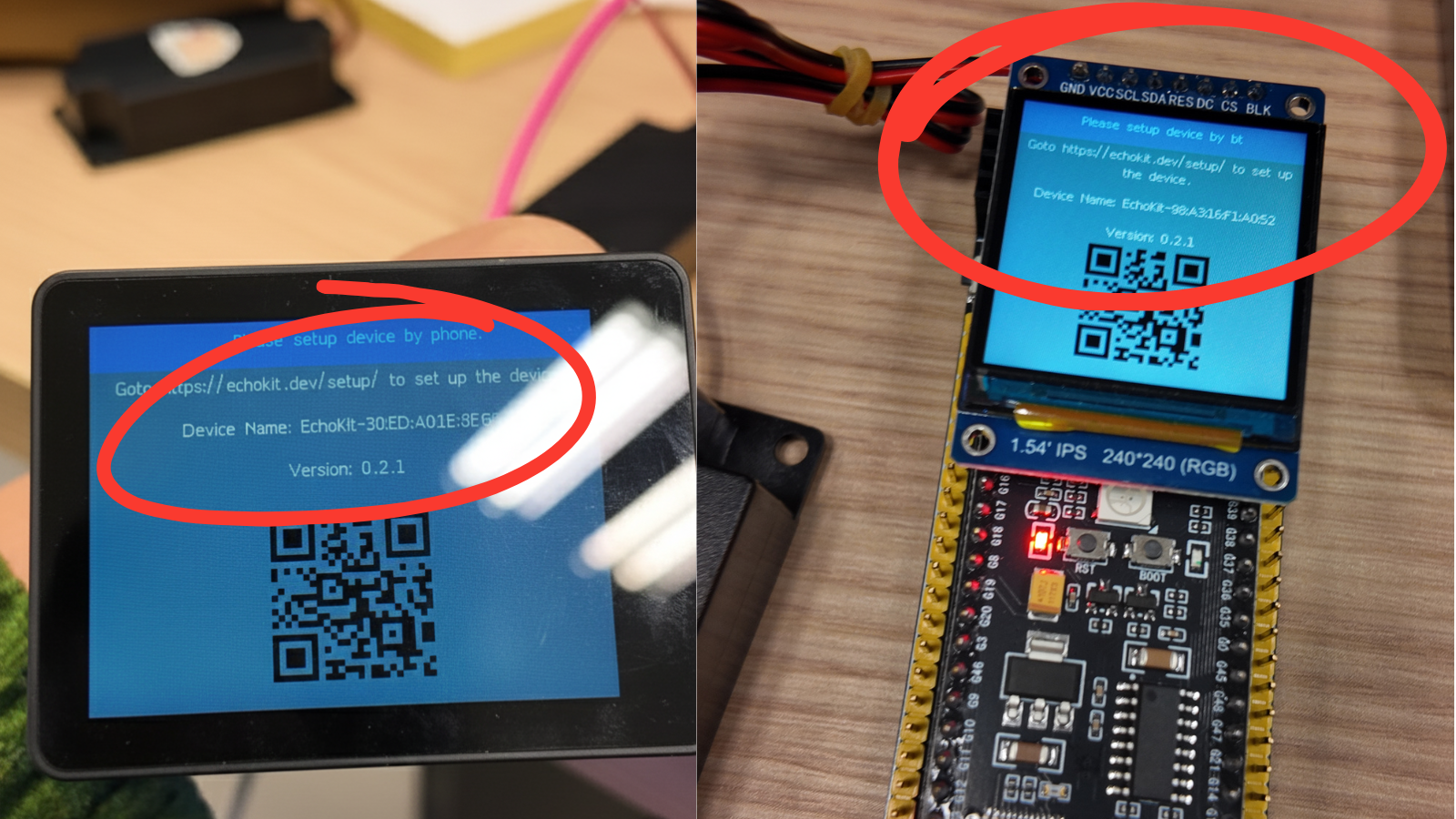
Next, connect your EchoKit device to the server. If you’ve followed Day 1 to make your EchoKit speak, you will need to reset your device.

  1. Press the RST button
  2. Hold K0 until the QR code reappears

Then, go to the setup page and enter your Wi-Fi name, password, and server URL in the format of ws://789.123.3.45:8080/ws.

The server URL should be your IP address starting with 192.168. Go to WiFi setting to get the IP address.

Suddenly, your little AI starts working exactly the way you configured it: Your Groq model, your ElevenLabs voice, your system prompt.

That moment really feels like… you’ve trained it yourself.

Day 1: Make Your EchoKit Speak to You | The First 30 Days with EchoKit

· 3 min read

Many of our customers have already received their EchoKit, ready to explore the fascinating world of voice AI. To help you become a Voice AI agent master, we’re kicking off the First 30 Days with EchoKit journey, which works for both EchoKit DIY and EchoKit Box users.

Day 1 is all about one exciting milestone: hearing your EchoKit speak for the very first time. That small device in your hands, quiet and unassuming just moments ago, is about to come alive.

Wondering about Day 0? If you have a DIY EchoKit, assemble it first.

Step 1: Power Up Your EchoKit

The adventure begins the moment you connect your EchoKit to power:

  1. Use the USB Type-C data cable to connect EchoKit to your computer or a power source.

  2. Watch as the device awakens — you should see a QR code appear on the screen.

  3. Can’t see the QR code? Don’t worry:

    • Click the RST button to restart.
    • Immediately press and hold the K0 button until the QR code appears.

There it is—the first sign that your EchoKit is coming to life. That tiny screen, those subtle lights—they mark the start of a new AI companion ready to talk to you.

Step 2: Connect EchoKit to Your Computer

Next, it’s time to introduce your EchoKit to the digital world:

  1. Open a web browser (Chrome is recommended) on your desktop and go to: 👉 https://echokit.dev/setup/
  2. Click Connect to EchoKit to start pairing.

With this connection, your EchoKit AI assistant is ready to listen, respond, and learn. This small device is no longer just hardware—it’s now a voice AI companion that can interact with you in real time.

Step 3: Configure Wi-Fi and Server

Once paired, the setup interface will appear. This is where your EchoKit truly becomes yours:

  1. Enter the following details:

    • Wi-Fi Network: Your 2.4G Wi-Fi name

    • Wi-Fi Password: Your access code

    • EchoKit Server: Choose a pre-set server for a fast connection:

      • 🇺🇸 US: ws://indie.echokit.dev/ws
      • 🇪🇺 EU: ws://eu.echokit.dev/ws (Outside these regions? The response may be slower, but it will still work.)
  2. Click Write for each field.

  3. Once finished, press the K0 button on EchoKit.

With every step, you’re not just configuring a device—you’re preparing for your first conversation with your AI companion.

Step 4: Confirm Setup on EchoKit

After configuration, your EchoKit will:

  • Display a welcome screen
  • Play a voice greeting: “Hi there”

This is the moment you’ve been waiting for. Your EchoKit voice AI is now awake and ready. Take a moment to appreciate it—it’s listening, responding, and ready to become part of your daily life.

Step 5: Start Chatting

Now comes the fun part: your first conversation with EchoKit.

  1. Press the K0 button to start. The status bar will show “Listening …”.
  2. Speak to your EchoKit and enjoy its responses.
  3. If the status shows “Idle” or “Speaking”, use the K0 button to start or interrupt as needed.

Every question, every command, every interaction is a small discovery. This is the start of your voice AI journey, where your EchoKit learns, adapts, and surprises you with each conversation.

💡 Tip for Day 1: Today is about enjoying your first interaction and getting familiar with your AI companion. Tomorrow, we’ll explore customizing EchoKit’s voice and personality, making it uniquely yours.

Introducing EchoKit Box

· 3 min read

A bigger screen. A cleaner design. A more powerful EchoKit.

We’re excited to introduce EchoKit Box, the newest member of the EchoKit family — built for makers, educators, and anyone exploring voice AI Agent.

EchoKit Box keeps everything people love about EchoKit, but elevates the hardware, polish, and usability in every way.

Full-Front 2.4-inch OLED Display

One of the most visible upgrades in EchoKit Box is its large full-front screen.

The entire front of the device is a high-contrast 2.4-inch OLED display, perfect for:

  • System information
  • Voice activity visualization
  • Playing videos stored on the TF card
  • Displaying graphics and custom UI
  • MCP-driven animations

Unlike the previous EchoKit generation, the visual feedback is clearer and more interactive, making this device suitable for both teaching and advanced AI projects.

Clearly Labeled Buttons (Including K0 and Reset)

Many users struggled to find the K0 button and reset button on the previous EchoKit DIY model. EchoKit Box solves this by placing integrated, clearly labeled buttons at the top of the device.

Clear hardware labeling = less confusion and faster development.

TF Card Slot for Media and Local AI Workflows

At the bottom of the device, you’ll find a TF card slot. You can store:

  • Music
  • Videos
  • Offline content
  • Custom datasets

And here’s where the fun begins:

You can ask the large language model to generate MCP actions that play music or video stored on the TF card — directly on the device.

That means you can say: “Play the music on my memory card.” And the device will play it through the speaker.

More Connectors for Additional Modules

On the side of the EchoKit Box, you’ll find two colored connectors (blue and red). These are expansion ports for sensors and modules, such as:

  • Temperature sensors
  • Cameras
  • LED light modules
  • GPIO-based sensors
  • Custom peripherals

Using MCP actions, the large language model can control these modules:

  • “Turn on the camera and take a picture.”
  • “Read temperature from the blue port sensor.”
  • “Switch on the LEDs.”

EchoKit Box becomes your modular AI platform, not just a single device.

Transparent Back With Visible Electronics

The back of EchoKit Box features a clear, transparent cover, allowing you to see:

  • The ESP32 CPU
  • PCB and circuitry
  • Speaker
  • Microphone
  • Components such as power regulators and drivers

Makers, students, and hardware enthusiasts love this design because it shows exactly how the AI device works internally.

This is especially useful for:

  • STEM education
  • AI education
  • AI Hardware demos
  • AI workshops
  • DIY repair and customization
  • Special gifts for developers

Why We Love the New EchoKit Box

After months of iteration, we truly believe EchoKit Box is the most advanced EchoKit we’ve ever built:

  • Bigger 2.4-inch display
  • Better enclosure and build quality
  • Clear hardware labeling
  • TF card slot
  • More connectors for sensors and modules
  • Transparent back in geek style for education
  • Dual USB ports for firmware flashing
  • Great speaker/mic setup
  • Fully open-source and ESP32 powered
  • Works perfectly with local LLMs and MCP actions

It’s a hackable voice AI device that’s also polished enough for demos, classrooms, hackathons, and real projects.

Final Thoughts

We’re really proud of the new EchoKit Box, and we think you’ll love building with it.

Whether you’re experimenting with conversational AI, creating an embedded chatbot, teaching students about LLMs, or building robotics projects with sensors, this device gives you everything you need.

Stay tuned — more updates, tutorials, and expansion modules are coming soon.

Try EchoKit’s fun AI Voices Free

· 2 min read

Have you ever wondered what your AI would sound like with a Southern drawl or a confident Texas accent?

Until now, these premium voices were paid add-ons — but now you can try them for free on the EchoKit web demo.

We’ve added diverse, natural accents including Southern, Asian, African-American, New York, and Texas English, bringing more authenticity and cultural depth to your conversations.

Each voice is expressive and warm, built to sound like a real person rather than a robotic assistant.

No installation or payment needed — just open the EchoKit web demo and start exploring: https://funvoice.echokit.dev/

How to Play 🎤

  1. Open https://funvoice.echokit.dev/ in your browser.
  2. Choose the accent you want to try from Cowboy, Diana, Asian, Pinup, or Stateman.
  3. Allow the website to access your microphone when prompted.

  1. Click on Start Listening.
  2. Once you see “WebSocket connected successfully”, start talking to the character — it will respond in the selected voice!
  3. If you just want to listen, click Stop Listening to pause microphone input.

How Did We Make It 🎛️

Want something truly personal?

EchoKit is an open-source voice AI agent that lets you customize every aspect of both the hardware and software stack. One of the most popular features is Voice Clone — you can even clone your own voice!

Ready to create a truly personal AI voice? Learn how to do it here: Voice Cloning Guide.

From Browser to Device

Once you’ve experimented in the browser, you can take it even further.
EchoKit lets you play with these voices locally, on-device, even using your own voice.
Perfect for makers, educators, and AI hobbyists who want full control and real-time interaction.

🎧 Try the voices → https://funvoice.echokit.dev/
🛠️ Get your own EchoKit device → https://echokit.dev/

EchoKit — the open-source Voice AI Agent that sounds just like you.

Have any questions? Join our Discord community

New EchoKit Update: Button Interrupt and Volume Control Are Here!

· 2 min read

We’ve just released new versions of EchoKit Server (0.1.2) and EchoKit Firmware, bringing you more natural voice interactions than before.

Button Interrupt

You can now interrupt EchoKit’s speech with a simple K0 button press, which are located on the left side of the EchoKit device.

This makes your voice assistant feel more responsive — no need to wait until it finishes talking. Just press the button and start speaking right away!

Adjustable Volume

Need to make EchoKit quieter? The speaker used to be so loud we couldn’t even test it at night!

You can now adjust the speaker volume directly on the device, giving you full control of your experience.

The volume buttons are located on the right side of the device:

  • The top button increases the volume.
  • The bottom button lowers the volume.

This makes it easy to get the perfect sound level, anytime.

🚀 How to Update

  1. Download the latest version of Firmware from our ESP32 LaunchPad.
  2. Download the latest version of the server from EchoKit GitHub release page and rerun it.
  3. Flash the firmware to your device.
  4. Reconnect the server and device.
    • If you’re using the pre-set server provided by the EchoKit team, there’s nothing extra you need to do — the official server has already been updated to the latest version.
  5. You’re ready to go — enjoy your new interactive voice experience!

Have any questions? Join our Discord community

EchoKit Now Supports ElevenLabs for High-Quality Voice Generation

· 2 min read

We’re excited to share a new update — EchoKit now supports ElevenLabs, one of the most advanced voice synthesis platforms in the world. This means your EchoKit can now speak with natural, expressive, and human-like voices in multiple languages and styles.

What’s New

With ElevenLabs integration, EchoKit users can:

  • Generate lifelike speech with rich tone and emotion
  • Choose from dozens of AI voices or create your own
  • Support multi-language and multilingual voice output
  • Combine with local AI models for smarter, private conversations

Whether you’re building a smart home assistant, a talking robot, or an AI tutor, 11labs voices make your EchoKit sound more alive and engaging.

How It Works

Using ElevenLabs voices with EchoKit is simple! All you need to do is configure your TTS parameters in the config.toml file.

  1. Get your API key from ElevenLabs.
  2. Choose a voice model from ElevenLabs and note its Voice ID.
  3. Update your config.toml file like this:
[tts]
platform = "Elevenlabs"
token = "YOUR_API_KEY_HERE"
voice = "VOICE_ID_HERE"
  1. Save the file and rerun your EchoKit server.
  2. Reconnect your device to the server.

Why It Matters

EchoKit’s mission is to help everyone build and own their own AI voice agent. With the power of ElevenLabs, you can now customize the voice with ease.

Try It Today

Update your EchoKit server to the latest version and experience the new generation of AI voice synthesis. If you haven’t tried EchoKit yet, get one now to build your own voice AI agent at home.

Introducing EchoKit: Build, Learn, and Play with AI

· 4 min read

Artificial intelligence is no longer science fiction—it’s part of everyday life. From classrooms to workplaces, AI tools like ChatGPT and Gemini are being used by millions. But here’s the challenge: most people only interact with these systems as black boxes.

If we want to not just use AI, but to understand, customize, and innovate with it, we need tools that make AI tangible.

That’s why we created EchoKit — an open-source voice AI toolkit that makes learning AI as hands-on as building with LEGO.

What is EchoKit?

EchoKit is a open-source hardware and software toolkit for building and understanding modern AI voice agents.

  • Out of the box, EchoKit is a functional voice AI device—a companion you can talk to immediately.
  • But its real value lies in what’s inside: a modular hardware kit, open-source firmware, and an extensible AI server that together let you learn and experiment with every layer of the system.

With EchoKit, learners and educators can:

  • Explore modular hardware design, from microphones and speakers to ESP32-based processors.

  • Customize firmware written in Rust and re-flash the device to change how it behaves.

  • Run an AI server that connects to OpenAI, Gemini, or local open-source models for speech recognition, text generation, and voice synthesis.

  • Experiment with speech-to-text (ASR), large language models (LLMs), and text-to-speech (TTS) pipelines in a real system.

  • Build and integrate MCP tools (e.g., knowledge bases, search, or smart-home control) so that the AI agent can perform meaningful actions.

  • Learn how voice cloning, accents, and fine-tuned TTS models work, and try personalizing your own agent’s voice.

  • Set up local and private AI inference to understand how open-source models like Whisper and Llama can run on your own computer.

  • Follow structured guides that gradually explain AI concepts—from neural networks and embeddings to real-time systems—while encouraging experimentation.

In other words, EchoKit is not just a gadget—it is a practical curriculum in a box, designed to bring AI education to life.

Who is it For?

EchoKit is designed for a wide range of learners:

  • Students — Gain hands-on experience with AI that goes far beyond using apps. Build systems, break them apart, and learn how they work.
  • Teachers & Schools — Bring AI into the classroom with a platform that combines hardware, software, and clear documentation.
  • Parents — Provide your children with a meaningful project that blends fun, creativity, and real technical skills.
  • Technologists & Hobbyists — Experiment with AI voice agents as if they were Lego blocks. Modify, extend, and integrate EchoKit into your own projects.
  • Entrepreneurs — Prototype AI-powered products quickly, on top of a fully customizable and open-source foundation.

Why It Matters

According to a 2025 Pew survey, over 80% of American students already use large language models (LLMs) for schoolwork. Yet few understand how these systems actually function.

As Nvidia’s Jensen Huang put it:

“You won’t lose your job to AI—you’ll lose your job to somebody who uses AI.”

We believe the future belongs to those who don’t just use AI, but who can build and shape it. EchoKit helps bridge that gap by making AI education hands-on, practical, and open-source.

Join Us on Indiegogo

EchoKit is more than a device—it’s a platform for learning, creating, and teaching AI in a way that is open, transparent, and fun.

We’re now in our prelaunch phase on Indiegogo. By joining, you’ll:

  • Be among the first to access EchoKit when it launches.

  • Receive exclusive 48% off

👉 Join our Discord server and be part of the journey to bring hands-on AI education to everyone.